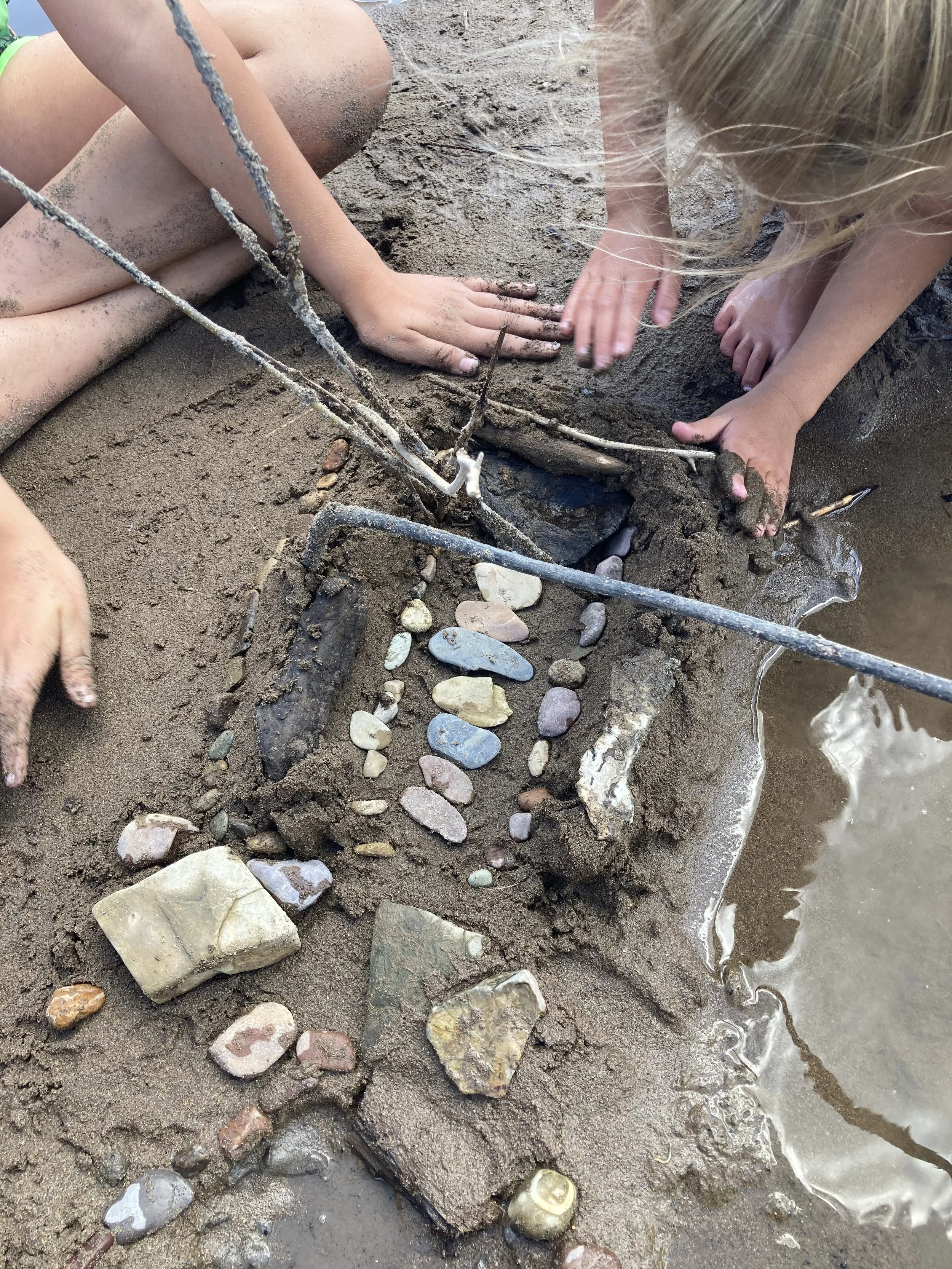
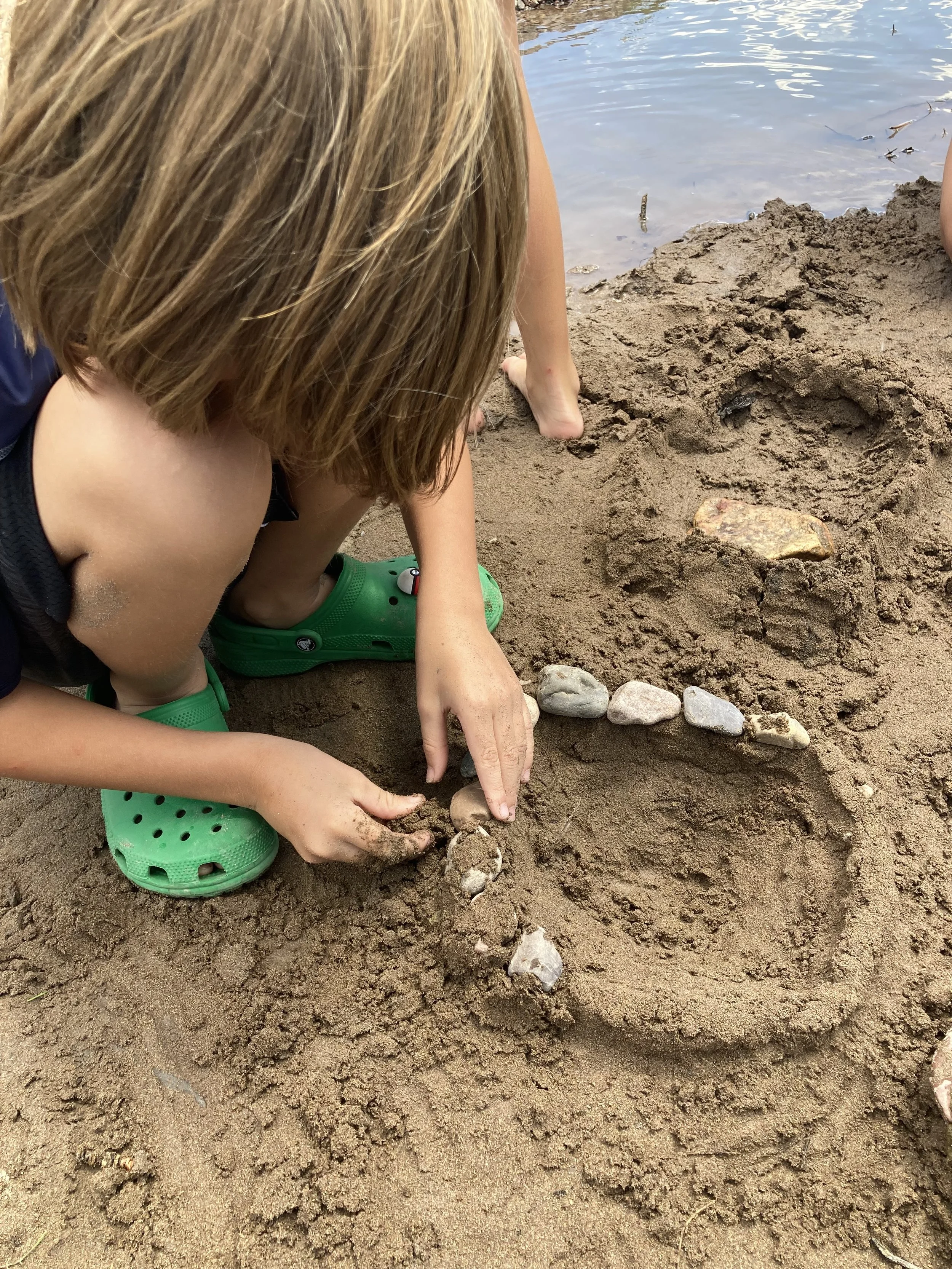
We are gently pulling together helping hands, equipment and excitement for the foundation of the Makerspace. Family and friends are gathering to provide fuel, passion and investment in our space for the community! The pictures below show our youngsters at work in their own creations of a Makerspace!
Makerspace Progress
Instruction section
Pages are built in SECTIONS
- they are separated by the horizontal blue lines when you are EDITING a page.
- to make edits to the section in general use the menu in the top right of the section (see pic)
In this section I changed the background and all the text colors just by going to: Edit Section > Colors > Dark One. We can set specific colors for those options - these are jus the ones generated by our basic color palette.
Added a divider on the bottom of the section: Edit Section > Design > Divider > Shape (clicked and adjusted shape options)
to pick the divider line color: … Divider > Color > Custom and selected a color.
you can Duplicate a section, Move it up or down.
Adding Sections: There are lots of template sections or you can choose from. Click the “Add Section” on one of the blue section lines to get the pop up menu.
BLOCKS (boxes) hold all the things, pics, text, forms, etc, that go on the page.
Use the “+ ADD BLOCK” button in upper left.
Tip: when you add a block you can click on the type of block you want (image, test, etc) and drag it to where you want it on the page.
Notice the alignment grid that shows up in the background when you move and resize boxes and watch how the boxes align.
Blocks of text, images, shapes, etc can overlap: Click on a block and hover over the popup icons (pencil, link, paint bucket, various squares, etc) to see what they do.

TEXT BOXES: Check out how this text block flows vs the other one with the same copy. (box 1)
TEXT BOXES: Check out how this text block flows vs the other one with the same copy. (box 2)

Love the chickadee!
Play with the the text, images, and shapes below to:
- change how they are layered
- round the corners of an image or put it in a different shape
- change the colors, shapes and opacity of shapes (brown, green and blue objects)
- something cool with the text
- duplicate an item or two
- add someething new to the mix
And make a list of questions : ) and call or text before getting stuck and frusterated.
TEXT BOXES: Check out how this text block flows vs the other one with the same copy. (box 1)


TEXT BOXES: Check out how this text block flows vs the other one with the same copy. (box 2)

